Exporting Animations
This section explains how to export animations from Mcblend and mentions some additional settings that can be configured before exporting.
Exporting Configuration
To export an animation, you first need to create one using the New animation button in the Object Properties panel under the Mcblend: Animations tab. This tab is only visible when an armature is selected. If you want to remove an animation, use the Remove this animation button.
Before exporting the animation, you can configure some additional settings in the Object Properties panel. The Skip rest poses checkbox allows you to create more optimized animations by skipping unnecessary keyframes that don’t affect the pose of the model. The Export as pose option changes the animation to a single pose, creating a looped animation with a single frame.
The Override previous animation, Loop, and Anim Time update settings are properties of Minecraft animations and are directly exported to the file. They have no effect on Mcblend. The Frame start and Frame end settings determine the range of frames that will be exported to the animation.
The Optimize Animation checkbox allows you to apply lossy optimization to the animation during export. This option also lets you configure the error acceptable margin for the optimization. More details in Optimizing animations section.
Exporting a single animation
Exporting a single animation is similar to exporting a model, as explained in the Creating animations from scratch documentation page. Go to File > Export > Export Bedrock Animation and select the export path. If the file already exists and is a valid animation file, the exported animation will be appended/updated.
Batch exporting multiple animations
If your armature contains several animations you can export all of them at once using the Batch Export Bedrock Animations operator:
Select the armature containing the animations.
Choose
File > Export > Batch Export Bedrock Animations.Pick an existing
.animation.jsonfile or provide a new path. If the file already exists, the exported animations will be appended/updated.
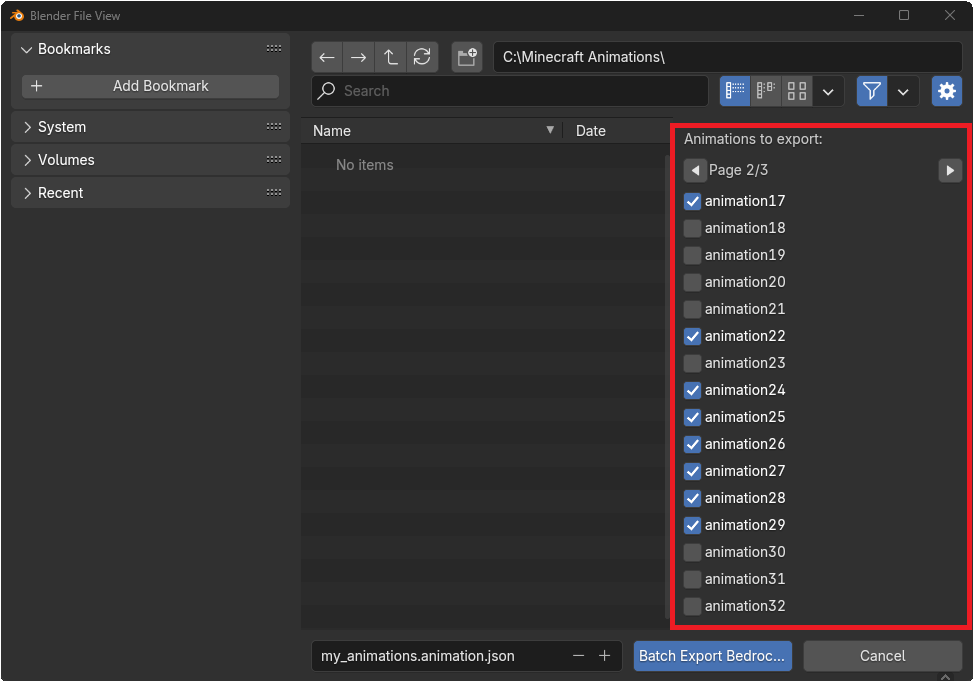
The sidebar lists all animations on the armature with check-boxes, allowing you to exclude individual clips from the batch.