UV groups
UV groups in Mcblend are used to group cubes together and apply the same texture to them. They can be managed in the Scene Properties panel under Mcblend: UV groups. UV groups affect how automatic UV mapping works. If two cubes have the same size and belong to the same UV group, they will be mapped to the same texture space.
Creating UV groups
To create a new UV group, press the New UV group button in the Mcblend: UV groups panel. By default, this will generate a texture similar to the default texture, but slightly darker, allowing you to easily identify which cubes are assigned to a particular UV group when generating textures. You can rename UV groups by double clicking on them in the list within the Mcblend: UV groups panel.
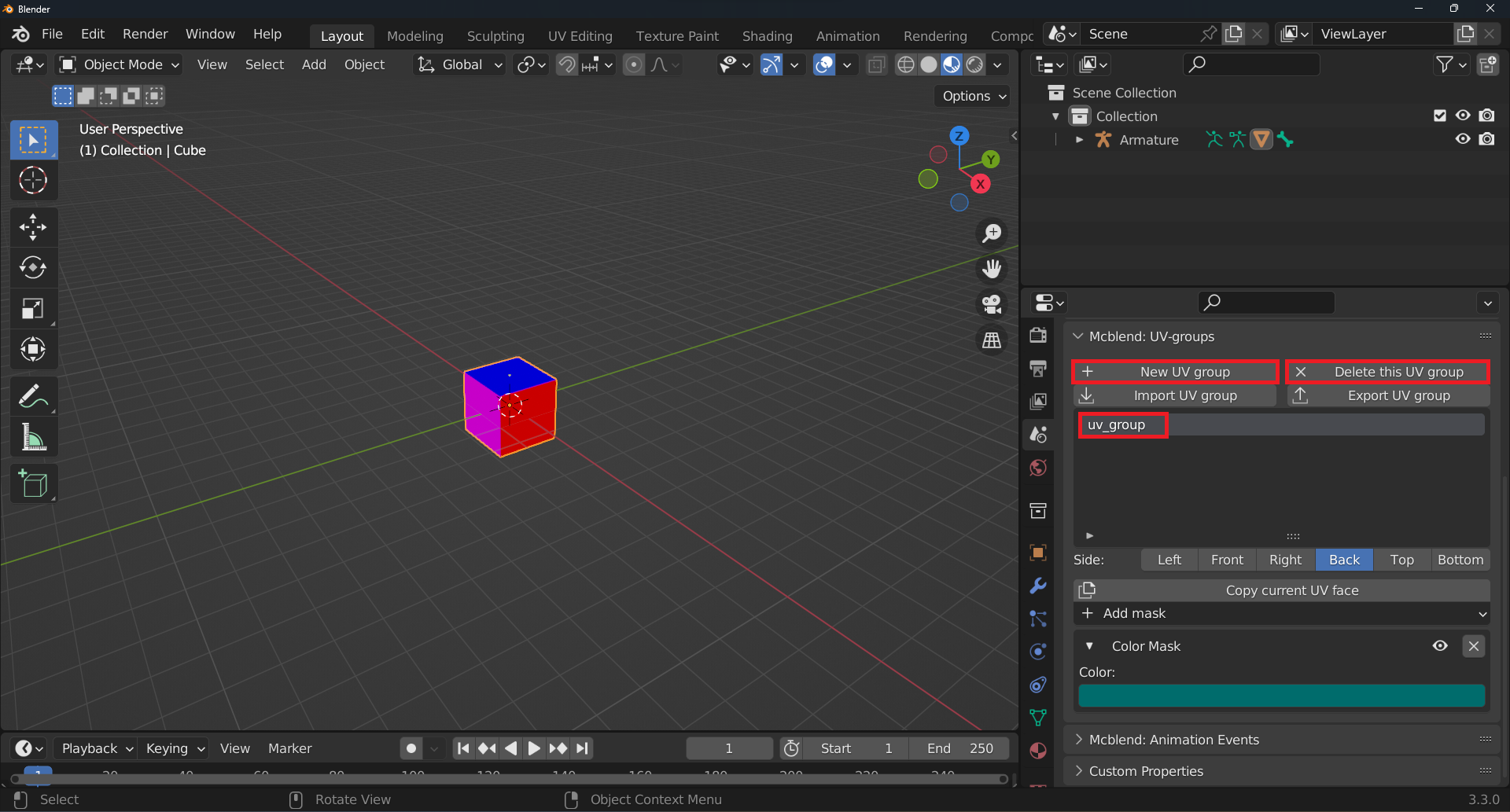
UV groups can be deleted using the Delete UV group button in the Mcblend: UV groups panel.
Importing and exporting UV groups
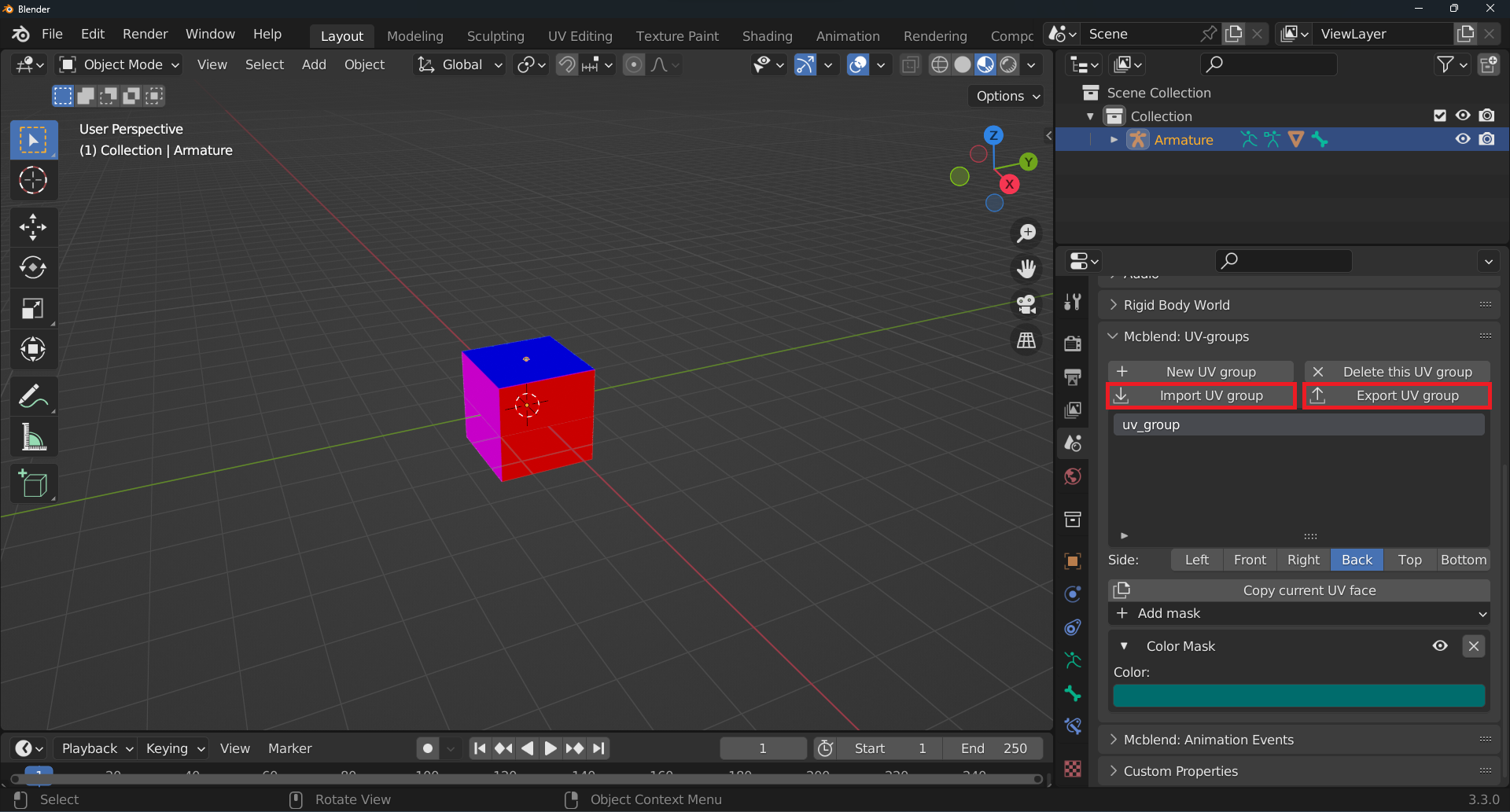
UV groups can be imported and exported as a JSON file, including the texture generation settings for the group. Use the Import UV group and Export UV group buttons in the Mcblend: UV groups panel to do so.
Assigning UV groups to cubes
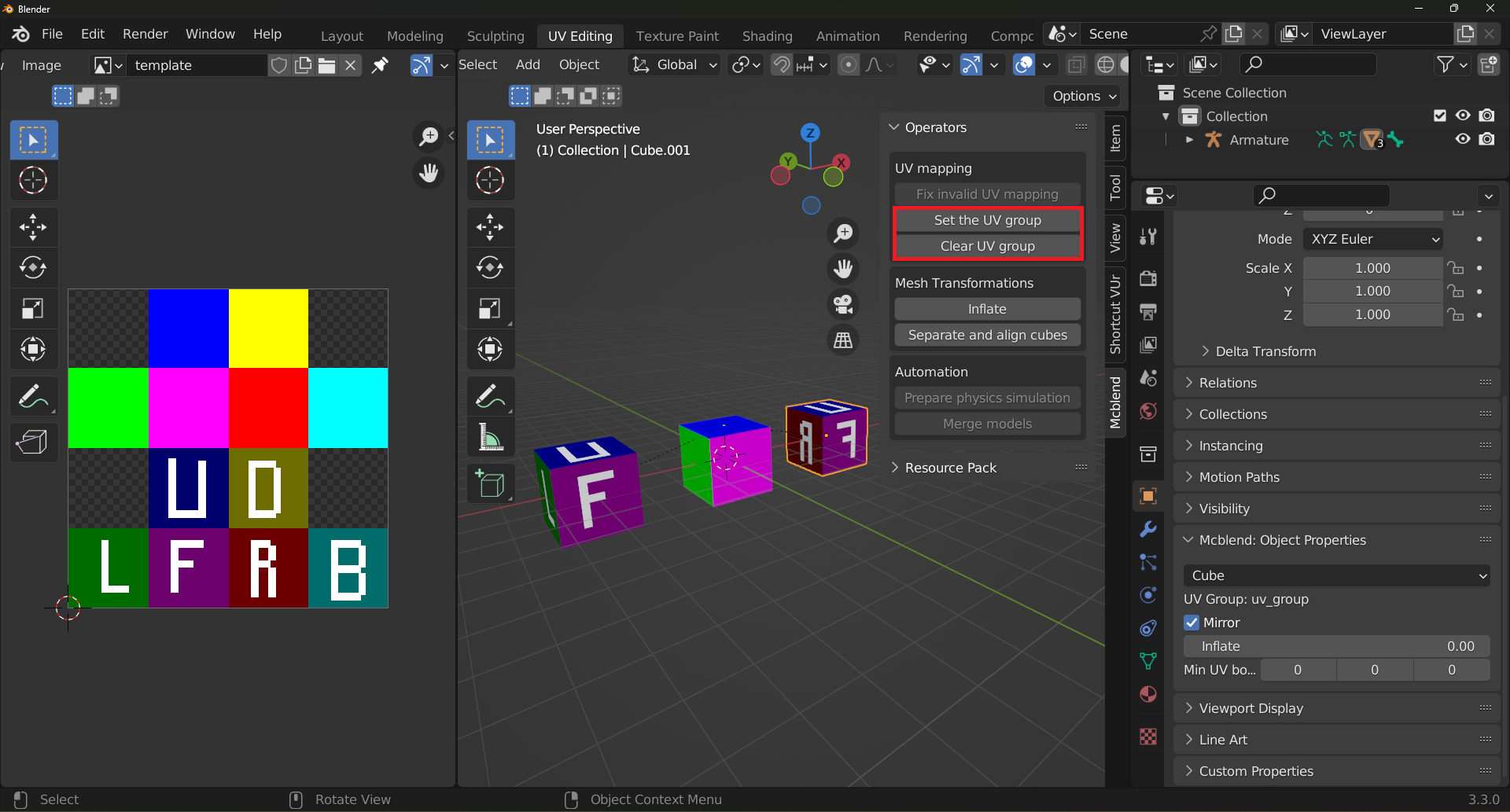
To assign or unassign cubes to a UV group, use the Set UV group and Clear UV group operators in the Mcblend sidebar within the 3D viewport. These operators will affect all selected cubes.
Displaying UV group information
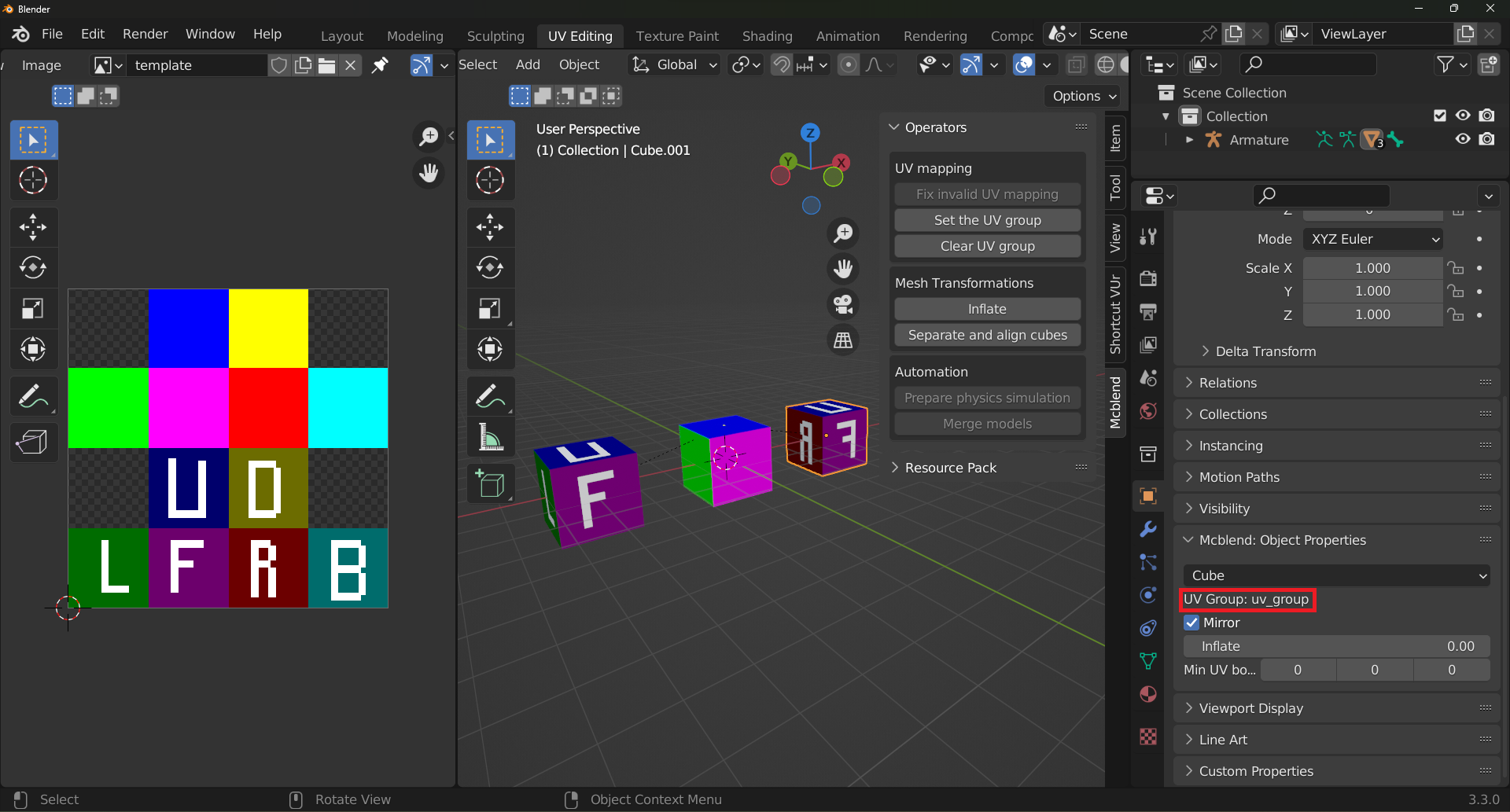
To check which UV group a cube belongs to, select the cube and open the Object Properties. In the Mcblend: Object Properties panel, you will find a label that displays the UV group the cube belongs to.
The Mirror property
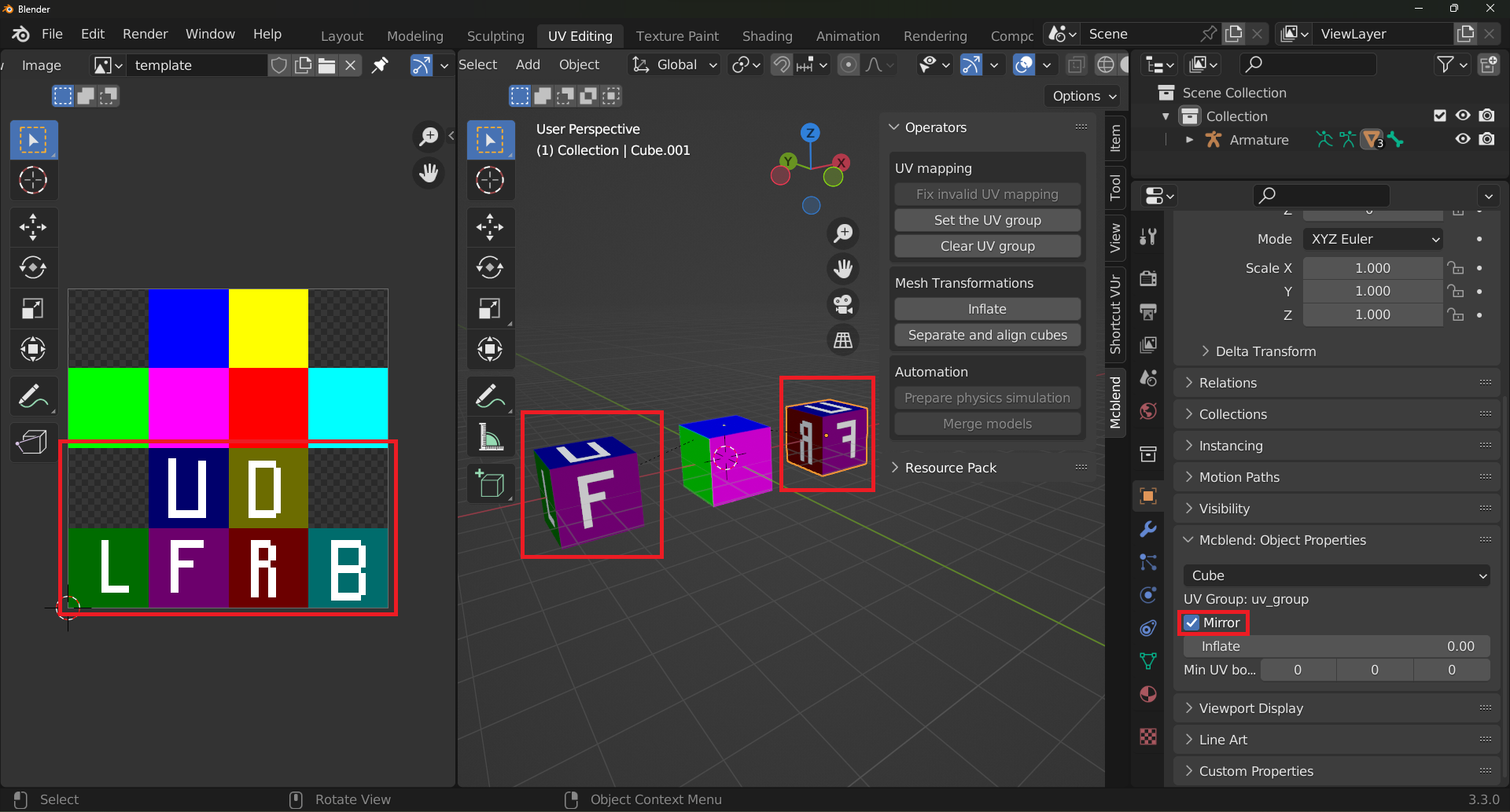
The Mirror property in the automatic UV mapping process affects how the texture is applied to the object. In the example below, two dark cubes are assigned to the same UV group, but one of them has the Mirror property enabled. This means that the texture will be mirrored along the X axis on that particular object. Both cubes are assigned to the same texture space, but the texture will appear differently on the object with the Mirror property enabled due to the mirroring effect.