Merging Models
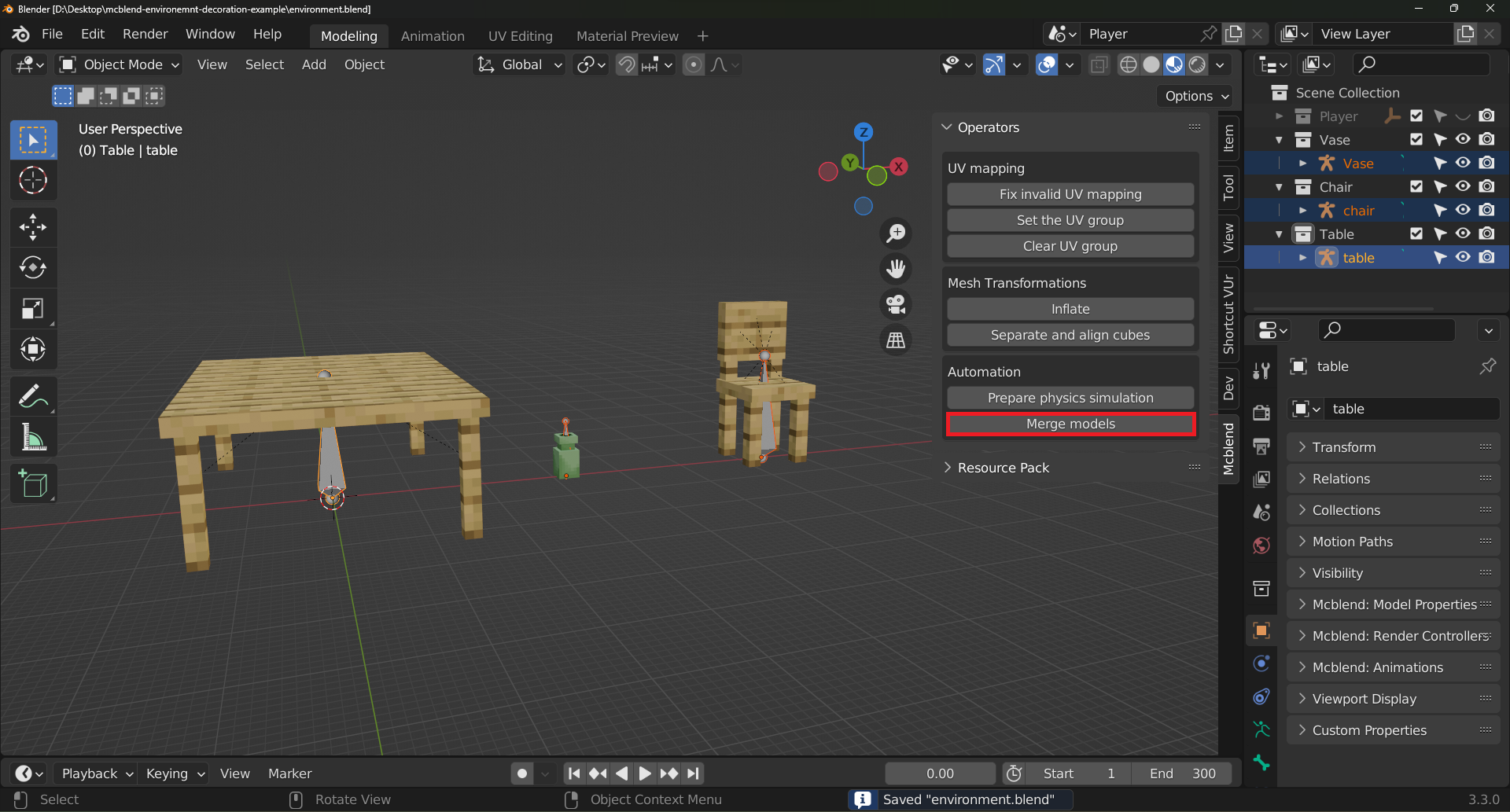
The Merge Models feature in Mcblend allows you to combine multiple Minecraft models and their textures into a single model with a new texture. This can be useful for creating more complex models by combining simpler ones.
How to Use Merge Models
Using the Merge Models feature is straightforward:
Import the models that you want to merge into your project.
Select the armatures that contain the models you want to merge.
Press the Merge Models button.
Press
OKin the dialog that appears. In the dialog, you’ll see the list of the models that will be merged and the names of the textures that will be used for each model. TheMerge modeloperator always uses the texture from the first render controller of each model.
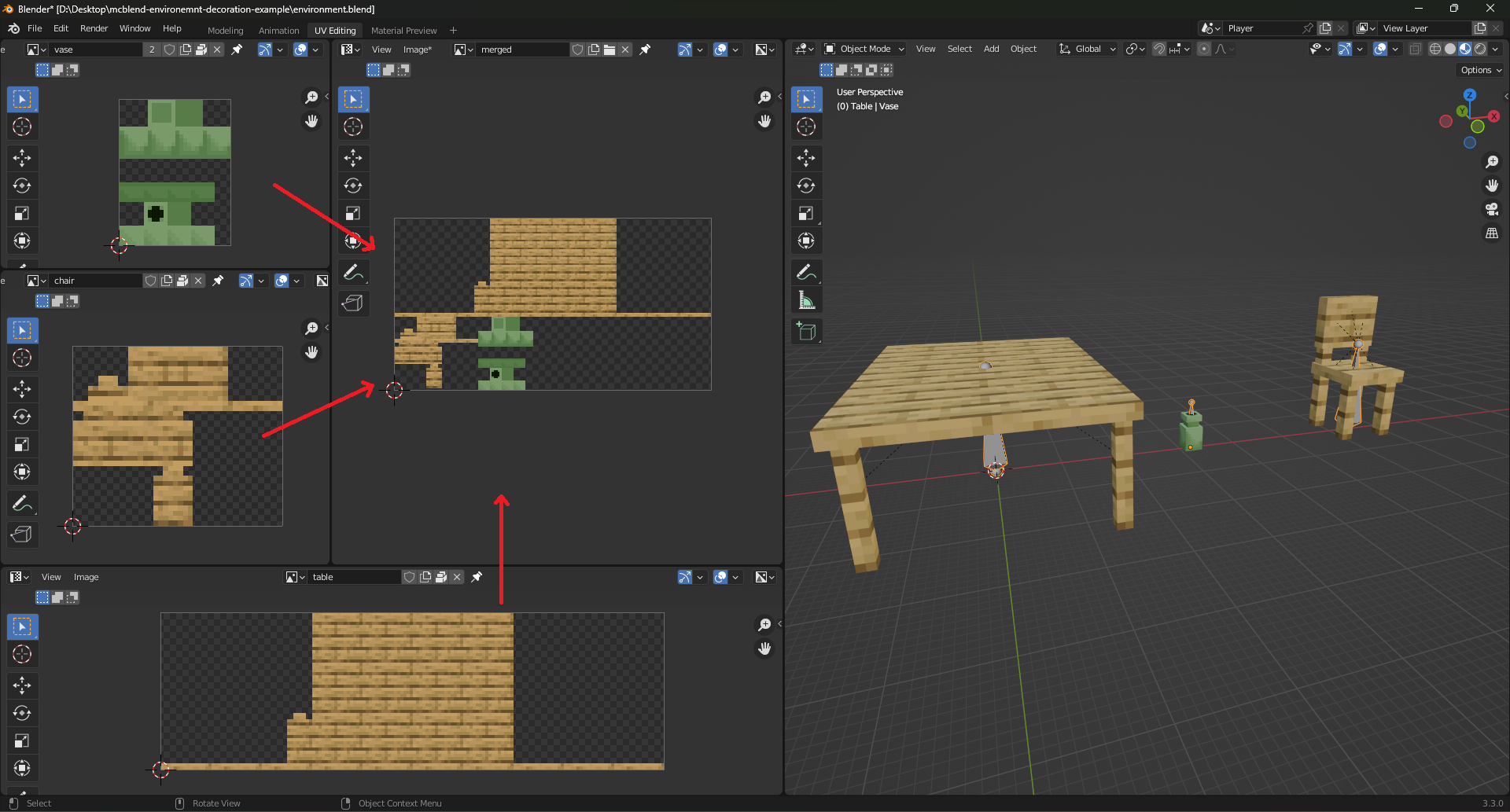
After the merging process is complete, you will have a new model with a new texture that contains the textures of all the merged models. All of the bones in the merged models will have been renamed to avoid naming collisions, and the new model will have a new render controller that maps all of the bones to the new texture.
Image below shows the result of merging 3 models:
Limitations
It’s important to note that the Merge Models feature has some limitations:
The feature won’t work properly if some of the models use complex render controllers or multiple textures at once. The merged texture is based on the first texture of each model being merged, so if the models use multiple textures, some of the textures will not be included.
The Merge Models feature doesn’t preserve the names of the bones.
If you merge animated models, the animations may won’t work properly.
In order for the operator to work, every model must have a render controller and a texture assigned to it.