Extra Keyframes
The Extra Keyframes feature in Mcblend allows you to add additional keyframes to your exported animations. This is especially valuable when your model’s animation is driven by constraints, physics simulations, or other procedural methods that don’t place keyframes on the armature’s timeline. Mcblend can then capture these dynamic poses at specified frames without requiring you to manually keyframe them. This feature deosn’t replace explicitly set timeline keyframes; instead, it supplements them
Extra Keyframes complement the Animation Optimization feature; they add extra detail to exported animations, while the optimization removes redundant keyframes.
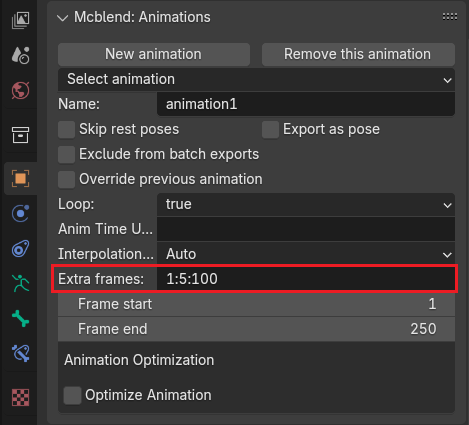
How it Works
In the Mcblend: Animations panel (found in Object Properties when an Armature is selected), you’ll find an “Extra frames” field. This field accepts a pattern string that defines individual frames or ranges of frames to be added to the animation during export.
Frame Range Patterns
The patterns use a colon-separated and comma-separated format, based on the following rules:
START:END- Includes all integer frames fromSTARTtoEND(inclusive).START:STEP:END- Includes frames fromSTARTtoEND, incrementing bySTEP.FRAME- Includes a single, specific frame.START:- Includes all frames fromSTARTto the end of the animation (as defined by the “Frame end” property of the animation).START:STEP:- Includes all frames fromSTARTto the end of the animation, incrementing bySTEP.You can combine multiple patterns by separating them with commas.
Examples:
1:10adds frames 1, 2, 3, 4, 5, 6, 7, 8, 9, 10.1:2:10adds frames 1, 3, 5, 7, 9.15adds frame 15.50:adds all frames from 50 to the animation’s end.1:2:adds frames 1, 3, 5, … up to the animation’s end.1:5, 10:2:20, 25, 27:would include frames 1 through 5, then 10, 12, 14, 16, 18, 20, then frame 25, and finally frames 27, 28, 29… up to the animation’s end.
Interpolation
It’s important to note that all keyframes added via the “Extra frames” feature will use linear interpolation in the exported Minecraft animation.